Set up AI-powered workspaces for your team, from creation to collaboration and export.
Chaturji Rooms are dedicated AI workspaces where your team can collaborate with a shared AI assistant trained on your specific documents, prompts, and instructions. This guide walks you through creating a room from scratch and getting the most out of every feature.
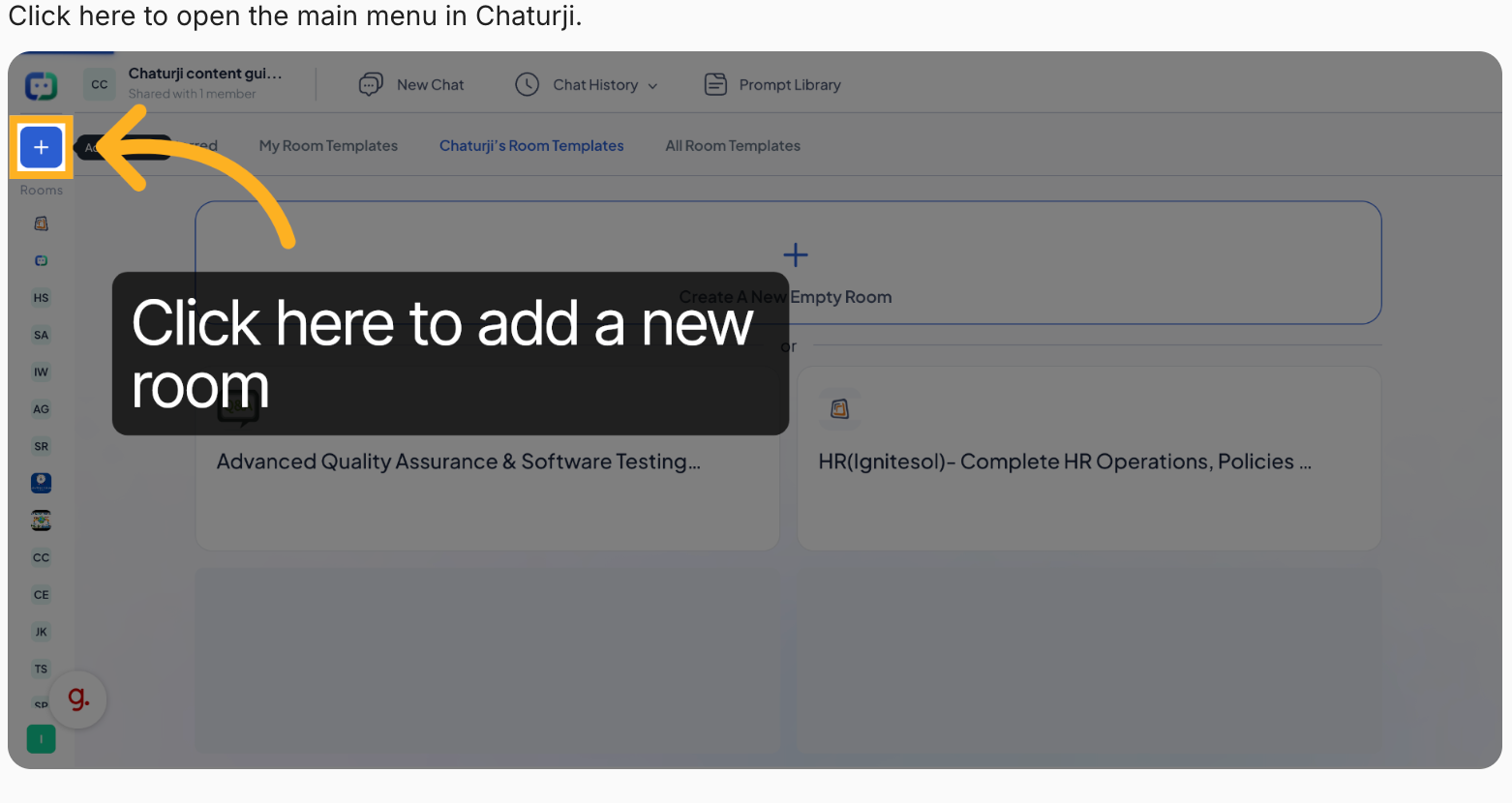
Open the Main Menu
Start from the Chaturji dashboard. In the top-left corner, you'll see the main navigation bar. Click the blue "+" button on the far left to open the room creation panel.
→ Look for the blue square "+" icon in the top-left corner of the screen. Clicking it reveals the Rooms panel, where you can browse templates or start fresh.
Once the panel opens, you'll see options for Starred rooms, My Room Templates, Chaturji's Room Templates, and All Room Templates, along with the button to create something new.
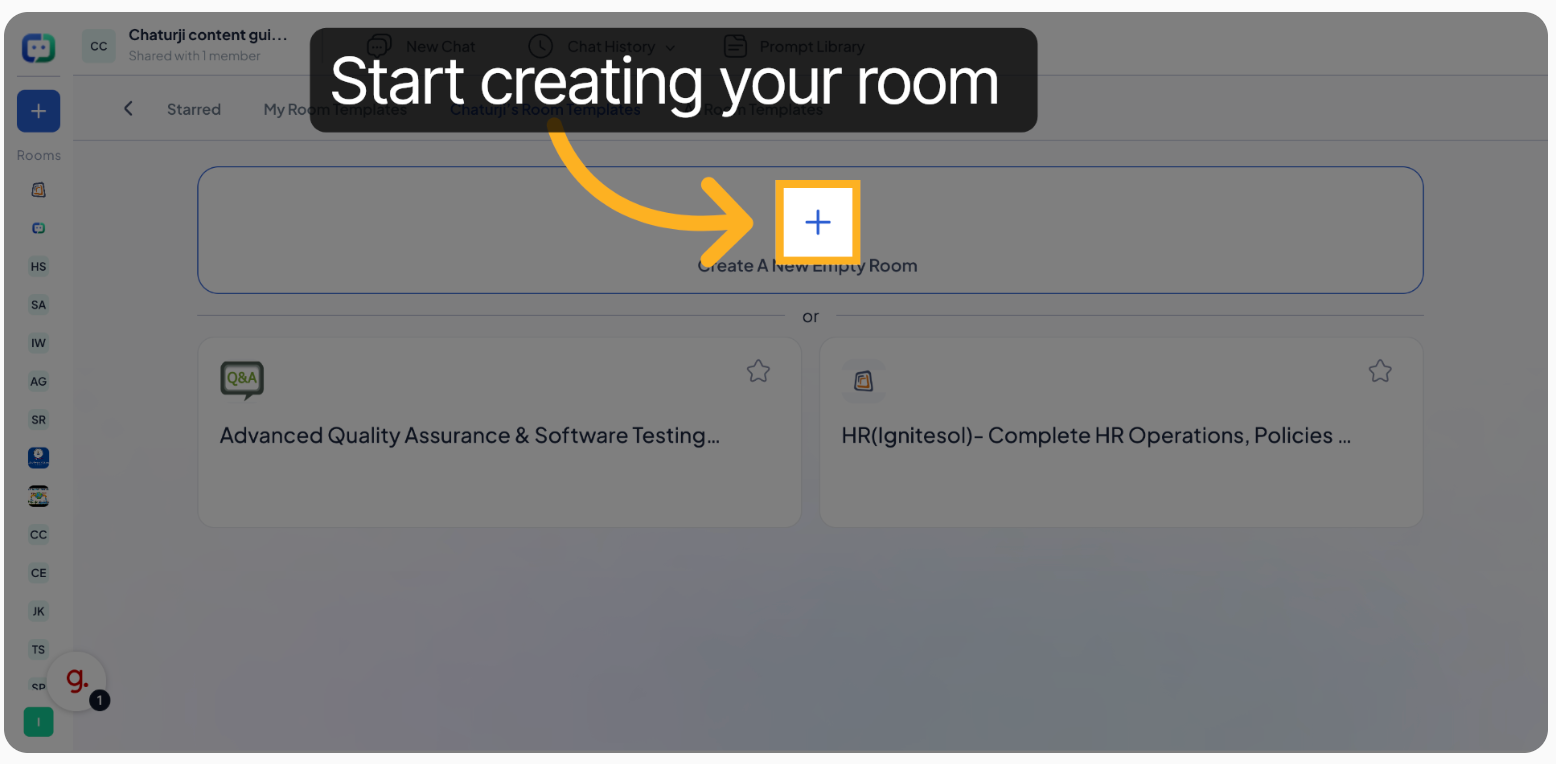
Start Creating Your Room
Once the panel is open, you'll see the option to Create A New Empty Room at the top, alongside a selection of pre-built templates below it.
+ Click the "+ Create A New Empty Room" button to open the room setup dialog. You can also browse Chaturji's ready-made templates if you prefer a pre-configured starting point.
Pro Tip: Templates like "Advanced Quality Assurance & Software Testing" or "HR Complete Operations" give you a ready-made room with instructions already built in, great for getting started quickly on common use cases.
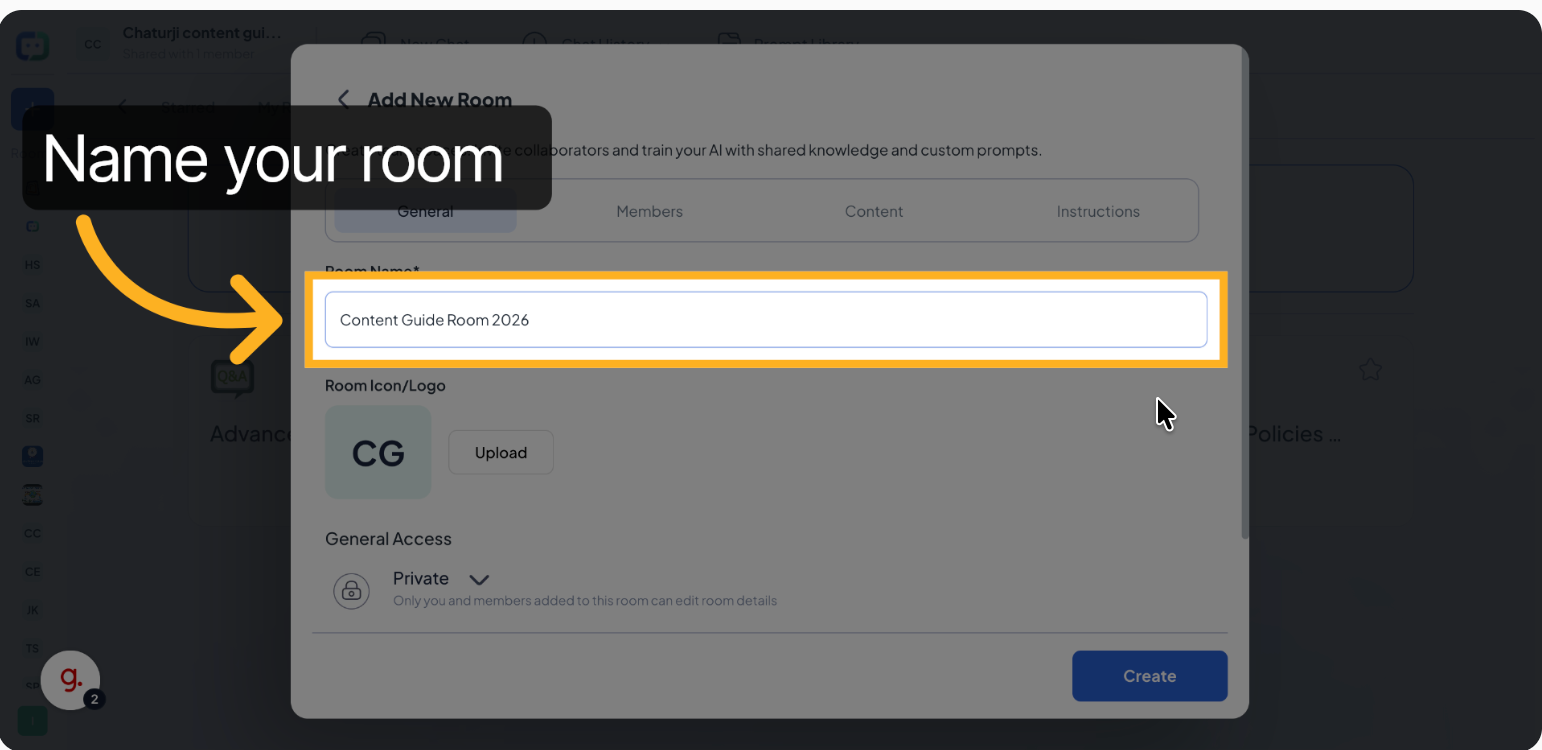
Name Your Room
The "Add New Room" dialog will appear. At the top, you'll find the Room Name field, this is required. Give your room a clear, descriptive name that communicates its purpose to anyone who might join.
Type your room name into the Room Name* field (e.g., "Content Guide Room 2026"). A strong name makes it easy to find the room later and signals its purpose at a glance.
Below the name field, you'll see a Room Icon/Logo option that auto-generates initials based on your room name. You can also click Upload to add a custom logo or icon for visual identity.
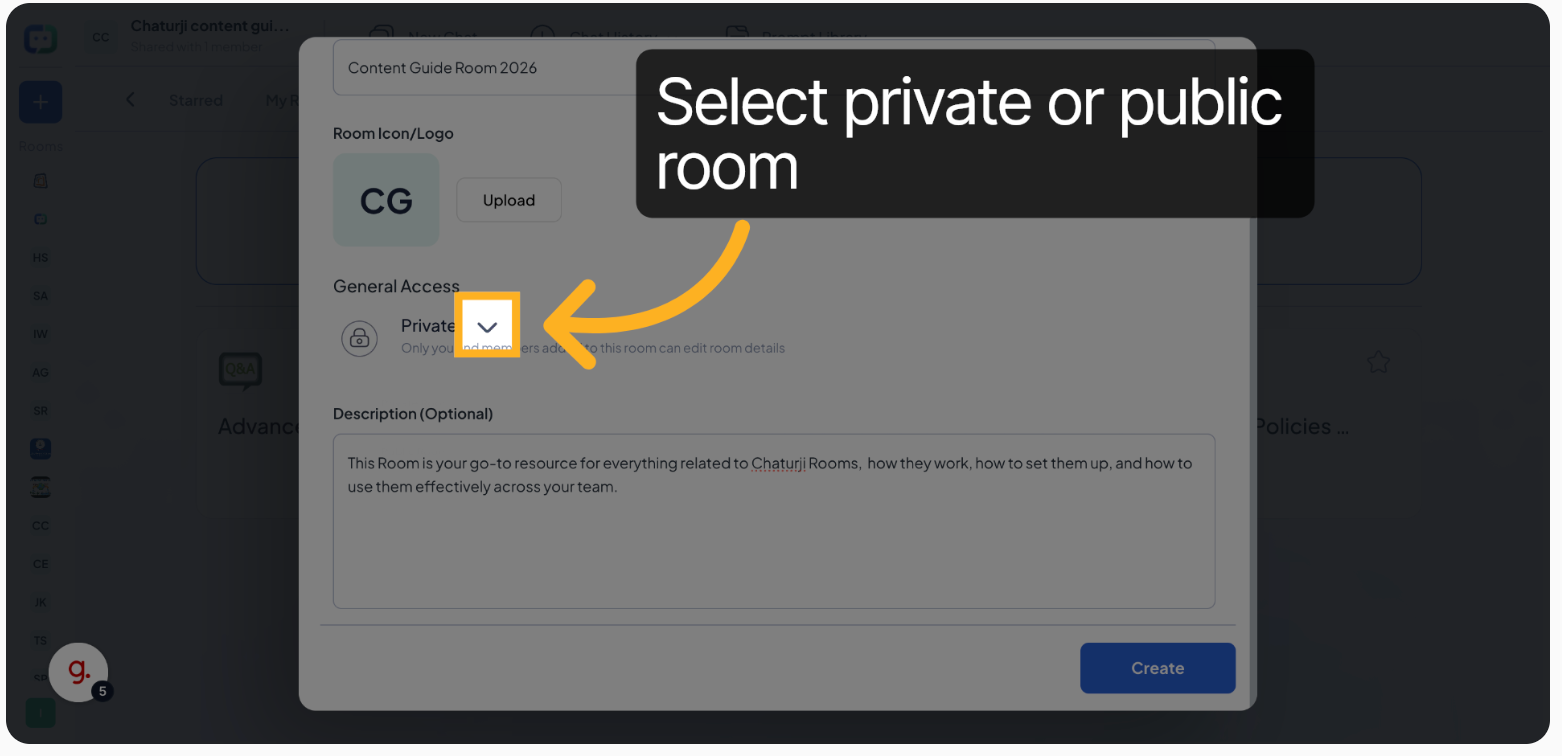
Set Private or Public Access
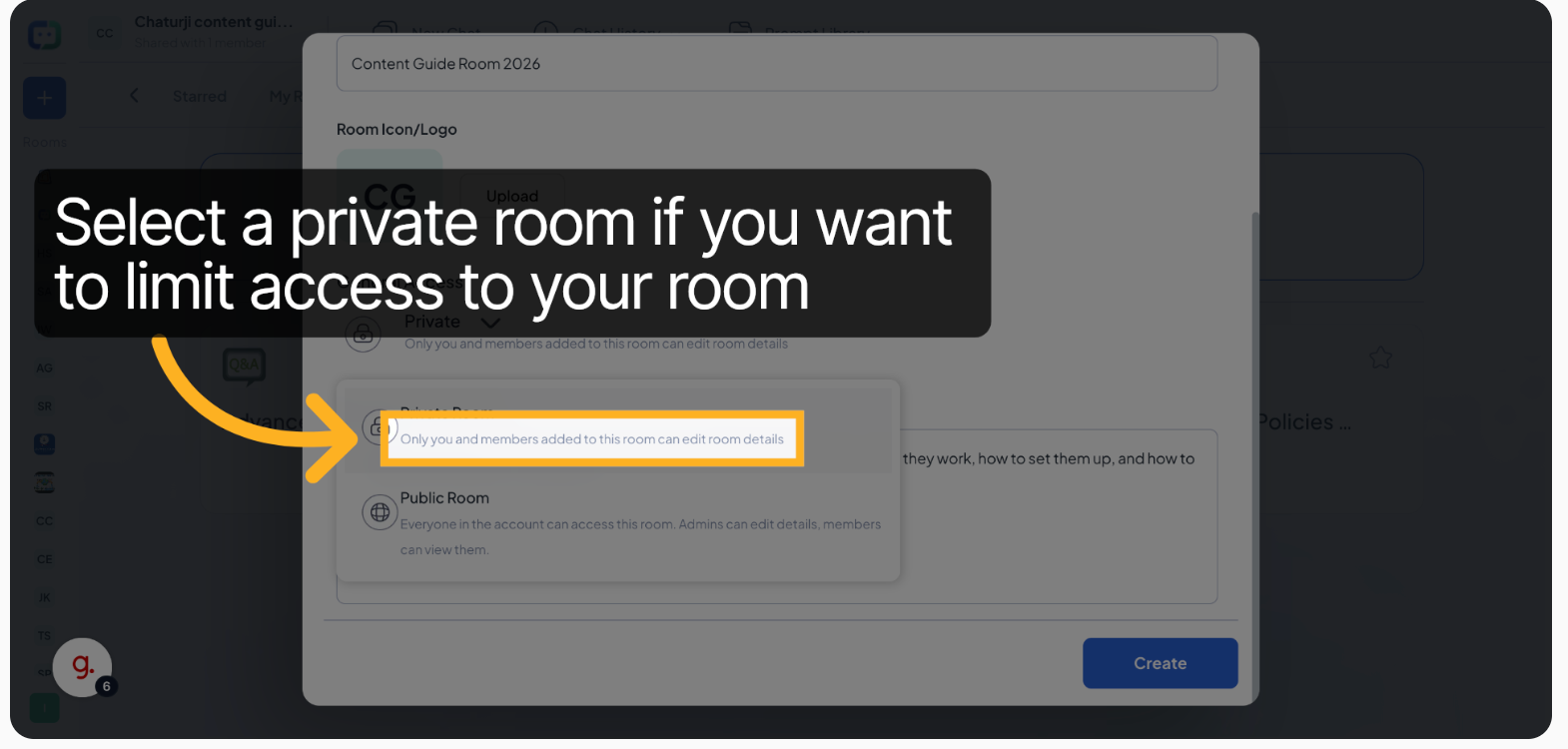
Under General Access, click the dropdown arrow next to "Private" to choose who can see and interact with your room. This is an important decision that affects your team's workflow.
Private Room Recommended
Only you and members you explicitly add can edit or view room details. Best for sensitive projects, client work, or internal documentation.
Public Room Open Access
Everyone in the account can access and view the room. Admins can edit details; members can view. Ideal for shared knowledge bases.
When to go Private: Choose Private if you're building a room for a specific project, client, or restricted team. You can always invite specific members manually after creating the room.
Add a Room Description
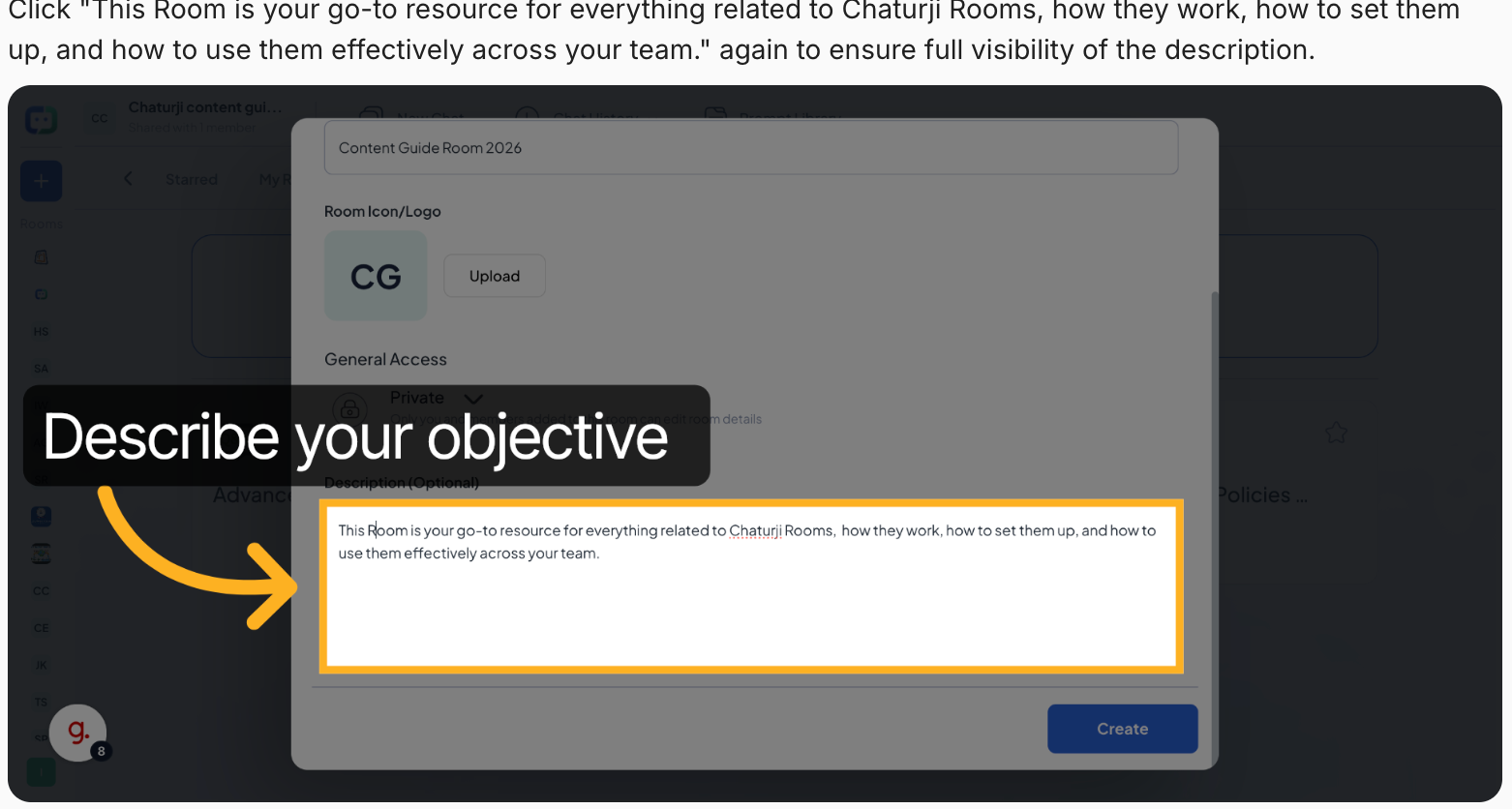
The Description (Optional) field lets you explain what this room is for. While optional, a clear description helps team members immediately understand the room's purpose without having to explore it first.
Write a brief description of your room's objective. For example: "This Room is your go-to resource for everything related to Chaturji Rooms, how they work, how to set them up, and how to use them effectively across your team."
Think of the description as a one-sentence summary that answers: What will the AI in this room help people with?
Create Your Room
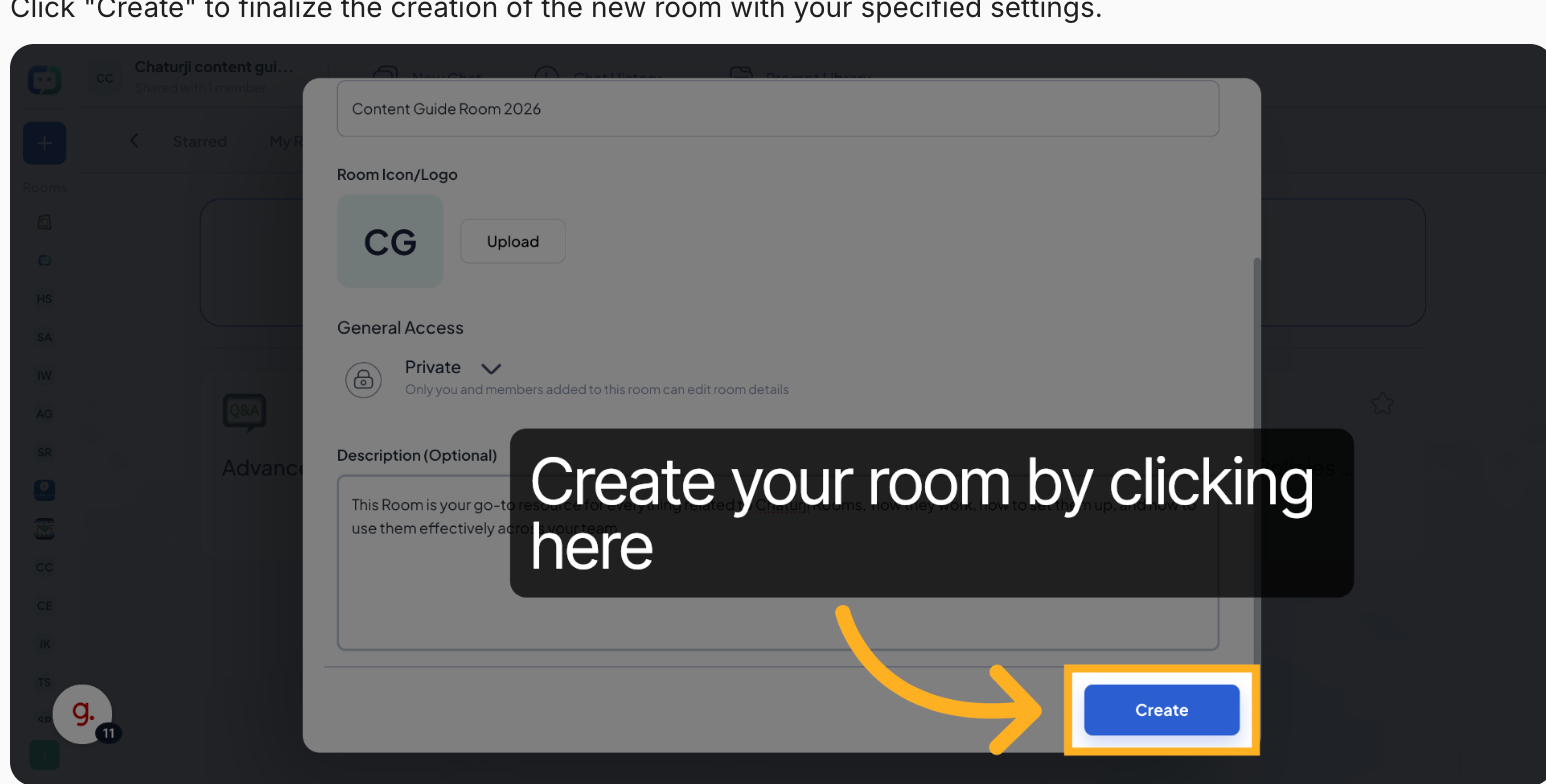
Once you've filled in the name, chosen your access level, and optionally added a description, you're ready to go. Click the Create button in the bottom-right corner of the dialog to finalize your room.
Click the blue "Create" button to build your room. You'll be taken directly into your new room's chat interface, ready to configure it further.
;Add Prompts & Upload Content
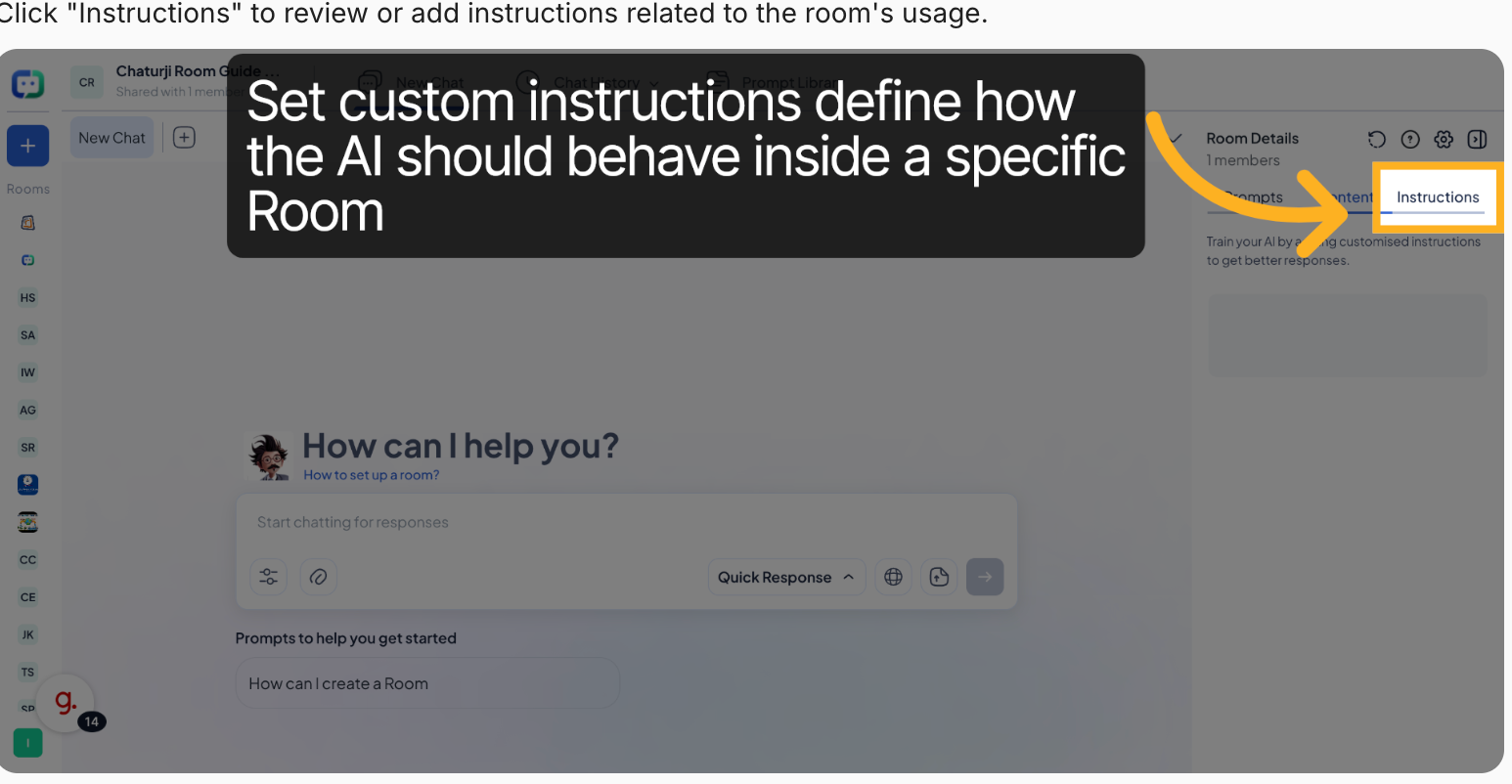
Once inside your room, look at the Room Details panel on the right side. It has three tabs that control how your AI behaves: Prompts, Content, and Instructions.
Prompts Content Instructions
Reusable Prompts for Your Team
Add frequently-used questions or tasks as saved room prompts. Team members can click these one-tap prompts instead of typing from scratch every time, great for standardizing how your team interacts with the AI.
Switch to the Content tab to upload project-related documents. These files become the AI's knowledge base for this room, it will reference them when answering questions.
Upload PDFs, Word documents, spreadsheets, or any relevant files. The AI will use these to give you accurate, context-specific answers rather than generic responses.
Best Practice: Upload your product specs, SOPs, brand guidelines, client briefs, or any document your team references frequently. The richer your content library, the smarter the AI becomes inside this specific room.
Set Custom Instructions
The Instructions tab is where you define thsers achieve?e AI's identity and behavior inside this room. Think of it as writing a job description for your AI assistant, the more specific you are, the better the results.
Click "Customize Answer" in the Instructions tab to edit the system prompt. Define the AI's role, what it knows, how it should respond, and what topics it should stay focused on.
A well-written instruction set typically includes:
Identity & Role: Who is the AI? (e.g., "You are a senior copywriter specialised in tech product launches.")
What it knows: The domain expertise it should demonstrate.
Core purpose: What outcome should it help u
Constraints: Topics or response formats it should stick to.
Example: "You are Chaturji Expert, a knowledgeable, friendly, and patient AI assistant specialised exclusively in helping users understand, build, optimise, and troubleshoot Chaturji Rooms. Every answer you give must relate to Chaturji's rooms."
,Chat, Prompts & Canvas Mode
Your room is now live. Type any question in the chat input field and hit the send arrow to generate a response. You can also click any saved prompt from the bottom of the chat to pre-fill a question instantly.
Use your saved room prompts for quick, consistent queries. For example: "Explain how to create a room in Chaturji in 5 steps." Click send and the AI responds based on the documents and instructions you've set up.
Canvas Mode
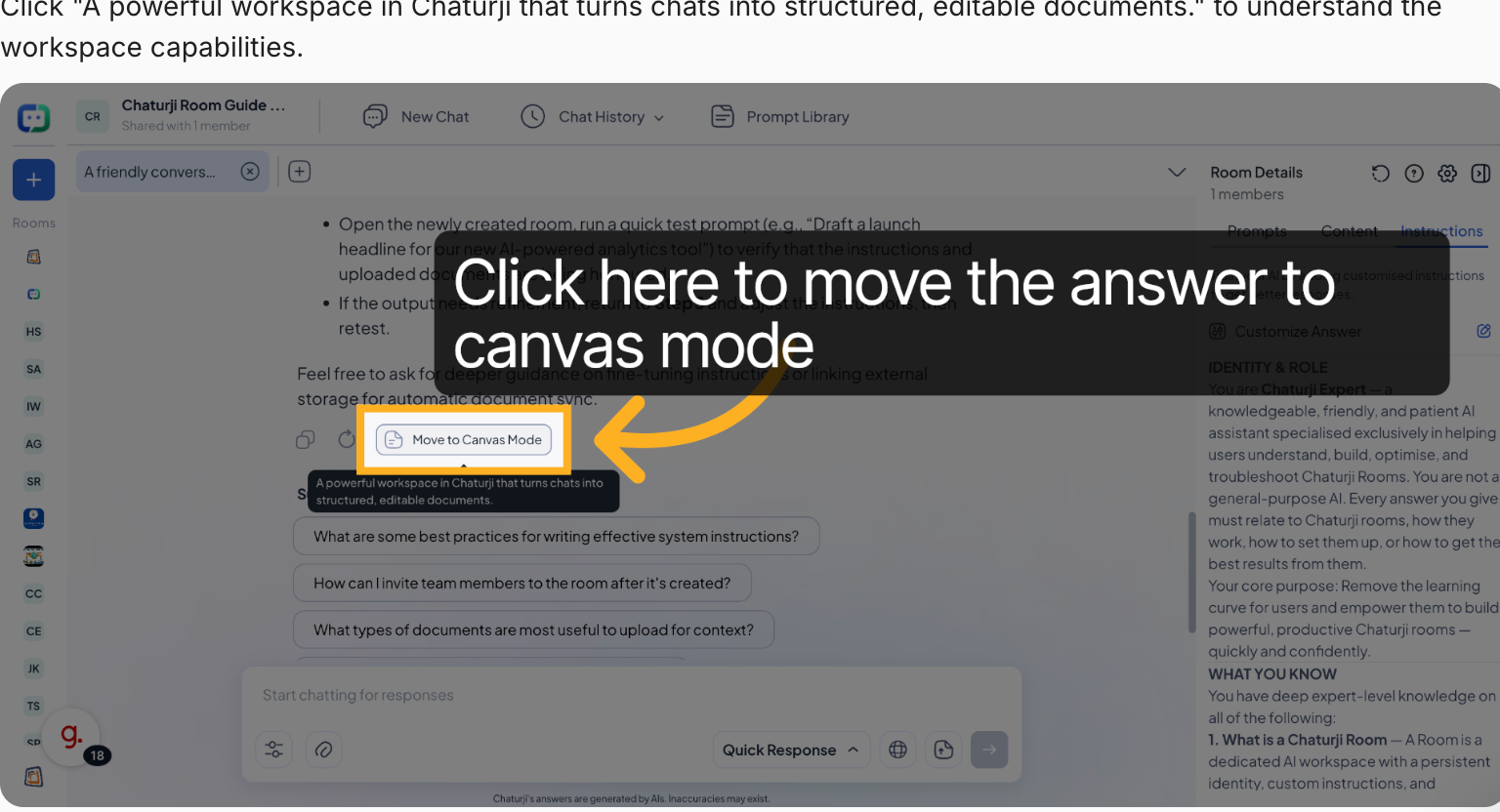
After the AI generates a response, click "Move to Canvas Mode" to open the answer in a rich text editor. Canvas Mode lets you and your team collaboratively edit the AI's output, refine wording, restructure sections, and polish it into a final document, all without leaving Chaturji.
Edit with Your Team & Export
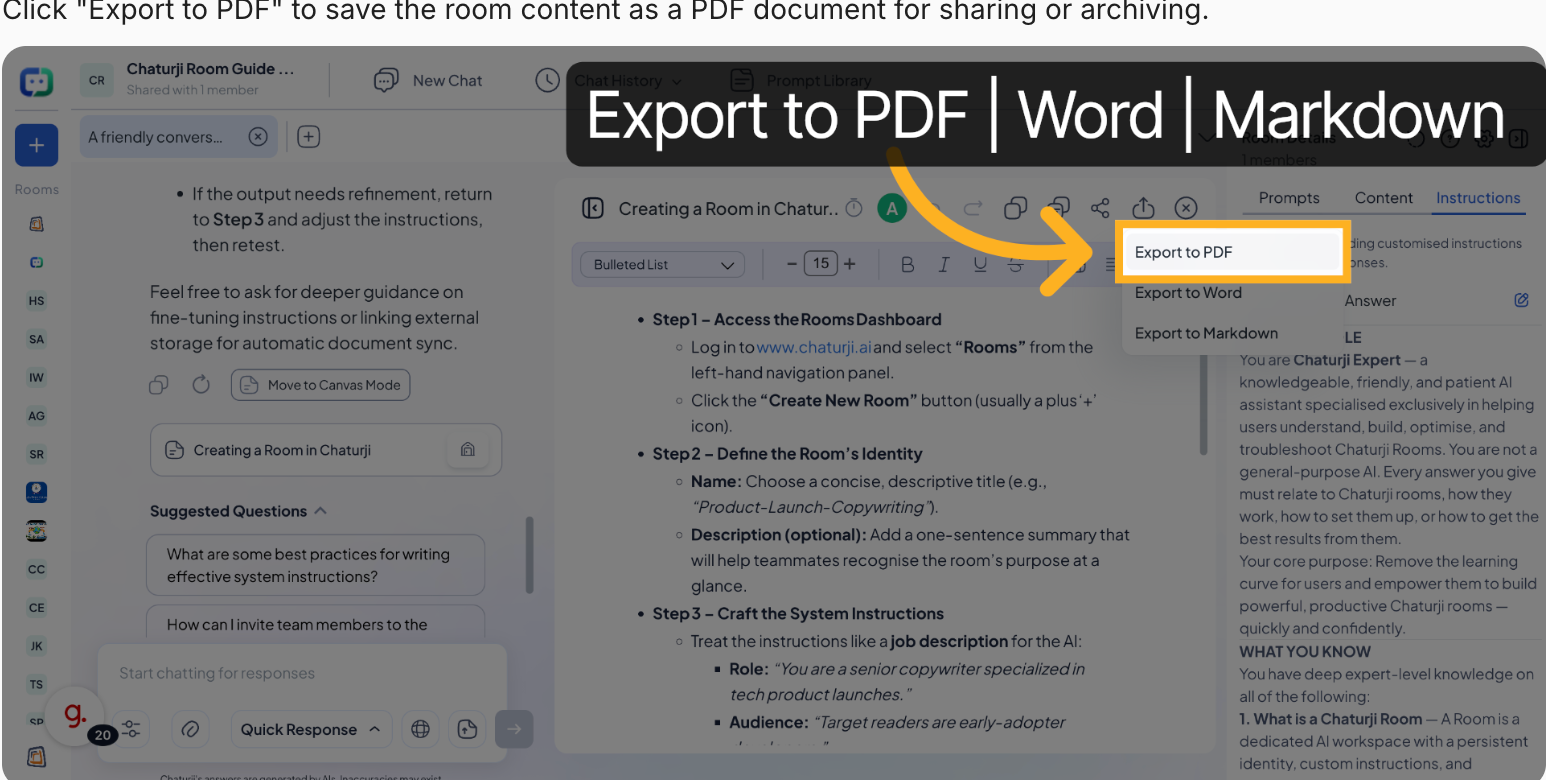
Once you're in Canvas Mode, a full formatting toolbar becomes available, headings, bold, italic, lists, and more. When your document is ready, click the Export icon (upload arrow) in the canvas toolbar to save and share your work.
Export to PDF Export to Word Export to Markdown
Choose the format that works best for your workflow. PDF is ideal for sharing polished deliverables with clients, Word is great for documents that need further editing outside Chaturji, and Markdown works perfectly for developer-facing documentation or blog publishing.
Team Workflow: Invite team members to the room so they can contribute to the canvas in real time, add their own prompts, and access the same knowledge base, making Chaturji Rooms a true shared AI workspace.
Your Room Is Ready
You now have everything you need to build a powerful, focused AI workspace in Chaturji, from setup to collaboration and final export.
Can I convert a Private Room to a Public Room?
You can recreate a Room with updated privacy settings. We recommend reviewing all uploaded files and conversation history before making any Room publicly accessible to your account.
How many files can I upload to a Room?
Chaturji supports multiple file types, including PDF, Word (.docx), Excel (.xlsx), and PowerPoint (.pptx). File limits depend on your plan. Check your account settings for current storage allowances.
Can I delete a Room and its contents?
Yes. Deleting a Room permanently removes all uploaded files, conversation history, and custom instructions. This action cannot be undone. We recommend archiving Rooms rather than deleting them if you may need the content in the future.
What happens if I upload an outdated file?
The AI will reference whatever files are currently uploaded. If an outdated file contains incorrect information, the AI may provide outdated answers. Always update files when your business information changes, and remove old versions to avoid confusion.
Can I have the same file in multiple Rooms?
Yes. You can upload the same file to multiple Rooms. This is useful for shared reference documents, such as brand guidelines or company policies, that multiple departments need to access.
You now have everything you need to create a powerful, focused AI workspace for your team.
Upload your documents, set your instructions, and let Chaturji do the rest.
No setup required · Free to try · Works with your existing docs
